Additive Manual
Overview
Additive is an additive synthesizer. Where a subtractive synth starts from a full waveform and filters parts of it away, Additive builds every note up from as many as 50 harmonics, each one a band you can set and move on its own. That puts the movement inside the sound: instead of one filter sweeping everything at once, some harmonics can pulse together while others drift, shimmer or move the opposite way.
You never have to set 50 values one by one, unless of course you want to do exactly that. Draw across the bands, pick a shape, or press Random and edit what comes out. The range runs from shimmering pads and bell-like plucks to deep resonant basses.
The feature set at a glance:
- Harmonic bank. Up to 50 bands per voice, where band 1 is the fundamental and band n sounds at n times its frequency. Sweep across the bars to draw a spectrum, pick one from the Shape menu, or press Rand for a new one.
- Movement for every band. The bank's LFO Amount, LFO Phase and LFO Rate views set how far, when and how fast the Master LFO moves each band, with the same drawing, Shape and Rand as the spectrum.
- Two spectra and Morph. Every sound holds a Spectrum A and a Spectrum B, and Morph blends from one to the other by hand or by modulation, so a note can begin as one sound and become another.
- Cutoff and resonance, uncoupled. Bands and Slope set the roll-off, the way a cutoff would. Bulk is the resonance: a boost with its own Position, Width and Height that sits anywhere in the spectrum, above the roll-off included.
- Spectral envelope. A dedicated ADSR moves Bands, Slope and the three Bulk dials by separate amounts on every note, and the bank's Spectral Mix view sets how much each band follows the roll-off and the Bulk.
- Four LFOs. The Master LFO moves the bands, and LFOs 2 to 4 each have three target slots. There are nine shapes, three of which (Drawn, Stepped and Ramped) you edit yourself, and Sync locks an LFO to the host tempo.
- Four envelopes. Amp and Spectral have fixed jobs, while Env 3 and Env 4 each have three target slots.
- Targets. A slot can reach the spectrum, Morph, the voice controls, pitch, volume, pan, the effects and the other LFOs, each with its own depth in either direction.
- Voice controls. Character takes each band from a perfect sine to a more analog, imperfect one, Detune and Chorus pull the bands away from pure tuning, Drive saturates each voice and Stereo spreads the bands across left and right, higher bands wider. Octave, Glide and a Poly / Mono switch complete the set.
- XY pad and Z. The pad's two axes and the Z slider below it each take targets of their own. The mod wheel plays Z unless you assign it elsewhere, and the Velocity dial lets each note's velocity raise it.
- Random. One button rolls a whole new patch: spectrum, movement, modulation and effects. Everything it sets stays editable.
- Effects. Delay, Reverb, Drive with six characters (Soft, Growl, Fold, Fuzz, Roar and Scream), Comp and EQ, followed by the Master level and a safety limiter.
- Presets. More than 100 factory presets across basses, pads, textures, plucks, leads, bells, organs, keys, brass and drones, plus your own.
- Up to 16 voices. The voice limit is set per instance on the Settings page.
- Built-in help. Touch any control and the strip along the bottom shows its value and a line on what it does.
- Four themes. Hardware, Cobalt, Dark and Light.
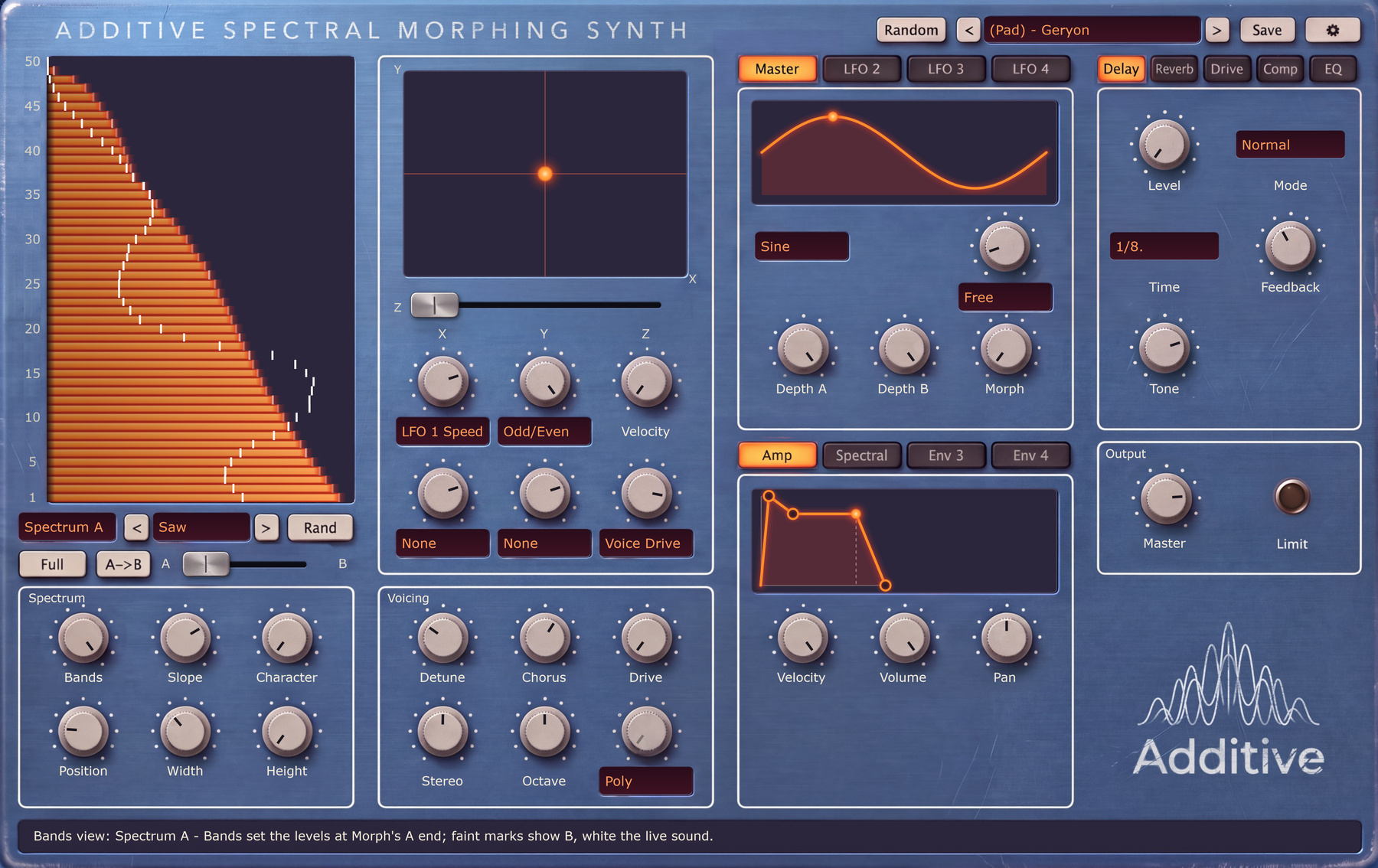
Additive is a single page. The preset bar runs across the top. Below it, from left to right: the harmonic bank with the Spectrum box under it, the XY pad with the Voicing box under it, the LFOs above the envelopes, and the FX panel above the Output box. The chapters that follow walk every box, and Settings, which has a page of its own, comes last.
The Preset Bar
The strip across the top of the synth. Left to right:

- Random: rolls a whole new patch across every section of the synth. It first decides what kind of sound to make (a pluck, keys, a bass, a lead, a pad or a drone) and then sets the spectrum, the movement, the modulation and the effects to suit, so the sections agree with each other. Everything it sets is an ordinary control value you can change afterwards. It leaves the Settings page alone.
- < and >: load the previous and the next preset without opening the list, wrapping around at the ends. After a click on the preset bar the arrow keys do the same: Left and Up step back, Right and Down step forward.
- Preset selector: shows the loaded preset and opens the preset list. Two pills at the top switch between System, the factory presets, and User, your own. Factory presets are named
(Category) - Nameand sorted by category: Bass, Pad, Texture, Pluck, Lead, Bell, Organ, Keys, Brass and Drone. The first entry, (Start) - Deep and Brooding, is the sound Additive opens with, and (Empty) - Sine is a blank page: the fundamental alone, with no movement. - Save: stores the current sound as a new user preset and asks for its name. With one of your own presets loaded the button reads Edit and its dialog also offers Overwrite, which replaces the loaded preset (under a new name if you type one), and Delete, which asks once more before the preset is gone.
- Gear: switches between the synth and the Settings page (see Settings).
A preset holds the whole sound: both spectra and every per-band value, all dials and menus on the synth page, the shapes you drew for the LFOs, the pad and Z positions with their targets, the effects and the Master level. It does not hold anything on the Settings page, so Voices, Octave, Pitch Bend, the Mod Wheel assignment and the theme stay as they are when you change presets.
The line along the bottom of the window is the messaging strip. Touch or hover over a control and it shows the control's name, its current value and one line on what it does. The dials have no value boxes of their own, so this is where you read exact values.

The Harmonic Bank
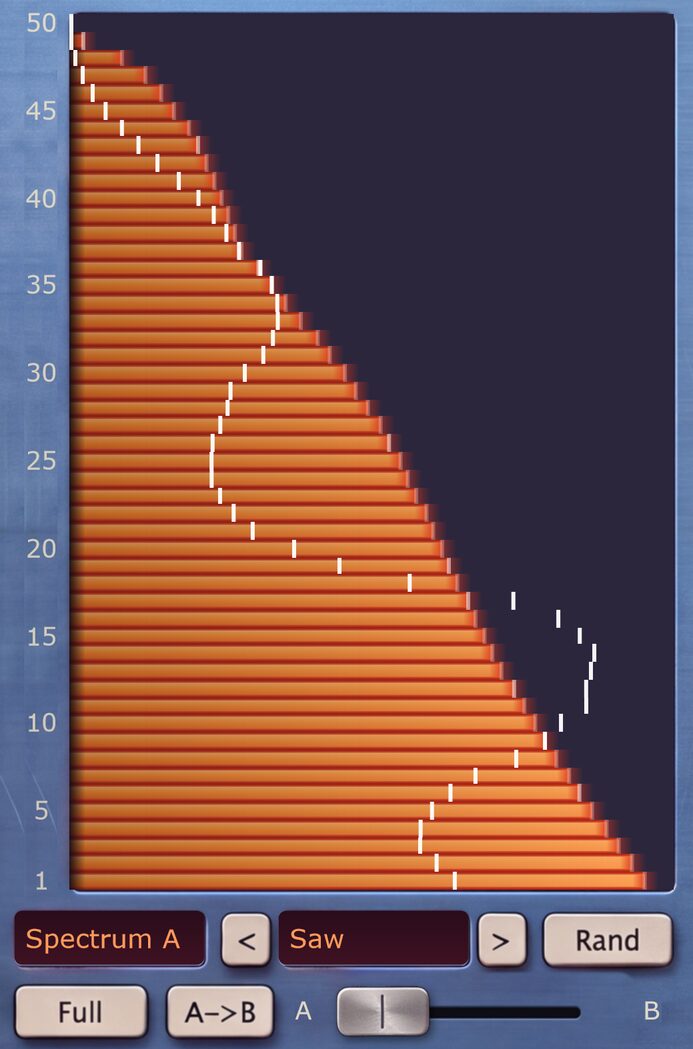
The large display on the left. Each row is one band: band 1 at the bottom is the fundamental, band 2 sounds at twice its frequency, band 3 at three times, up to band 50. The length of a row's bar is that band's value in the current view.
The bands
- Drawing: drag across the rows to paint values, one band after the other. A drag that started on the bars keeps painting when it leaves them at the side, at zero on the left and at full on the right.
- Reset: double-click a band to put it back to the view's neutral value: level 0, LFO amount off, phase 0, the LFO's own rate, or a Spectral Mix of 0.
- Live marker: a white marker on each row shows what the band is doing right now, following the latest note. In the spectrum views it is the band's level after the LFOs and the roll-off, in LFO Amount and LFO Rate the LFO's current output for that band, and in LFO Phase where the band is in its cycle.
- Other spectrum: in Spectrum A a faint marker shows each band's level in Spectrum B, and the other way around.
- Bulk: a red bar shows what the Bulk adds to a band. On a band at level 0, which has nothing to boost, it is dimmed to show where the Bulk would act.
- Bands edge: while you turn the Bands dial, a line across the rows marks where the edge sits.
View
The View menu below the bank chooses what the bars show and edit. Additive always opens on Spectrum A.
- Spectrum A: the level of each band at Morph's A end. This is the sound itself: which harmonics are present and how strong.
- Spectrum B: a second set of levels at Morph's B end.
- LFO Amount: how far the Master LFO moves each band. The bar grows from a center line: the center is off, right of it the band follows the LFO, and left of it the band moves the opposite way.
- LFO Phase: where each band starts in the LFO cycle, from the start of the cycle at the left to its end at the right. Staggered phases make the movement travel through the spectrum instead of hitting every band at once.
- LFO Rate: each band's LFO rate relative to the Master LFO's Speed, from half of it at the left through the same rate in the center to double at the right. Bands on the same rate stay in step with each other.
- Spectral Mix: how much each band follows the shape made by Slope and Bulk. At full a band takes the roll-off and the boost entirely; at 0 it ignores both and follows only the Bands edge.
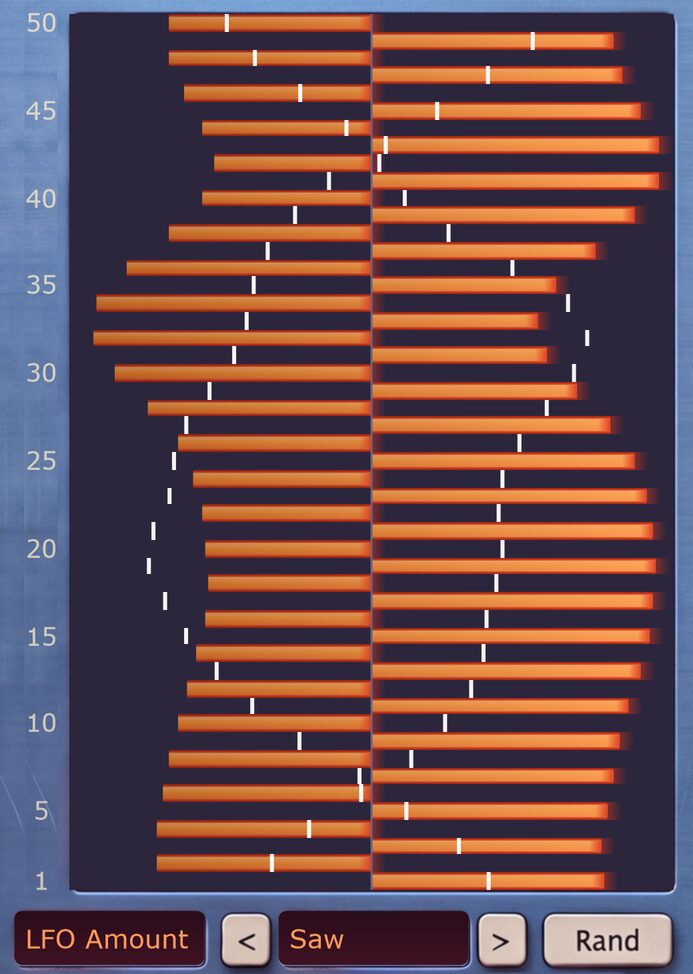
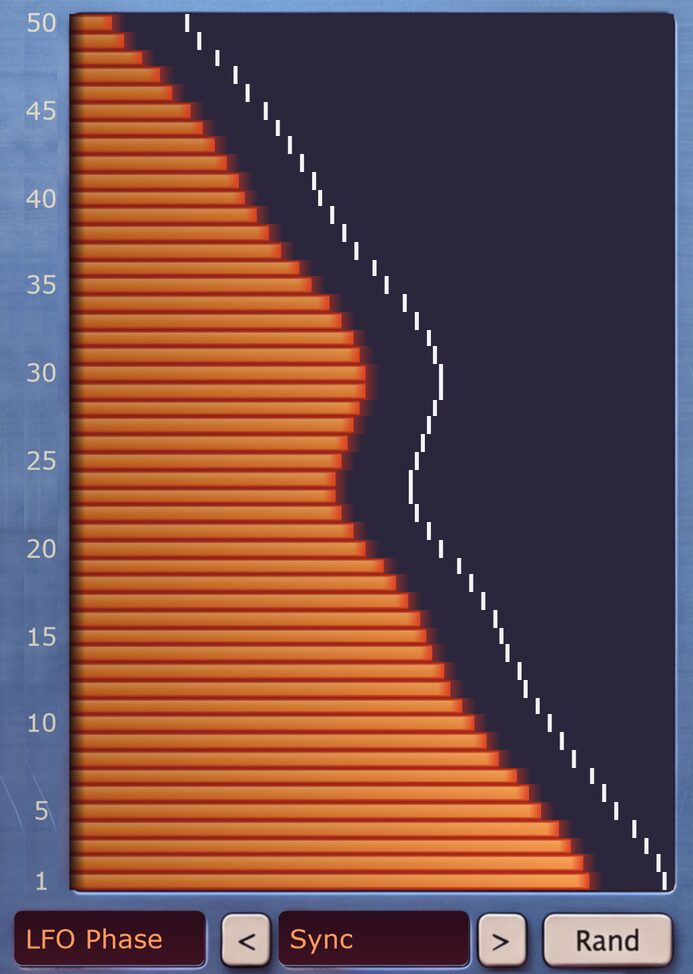
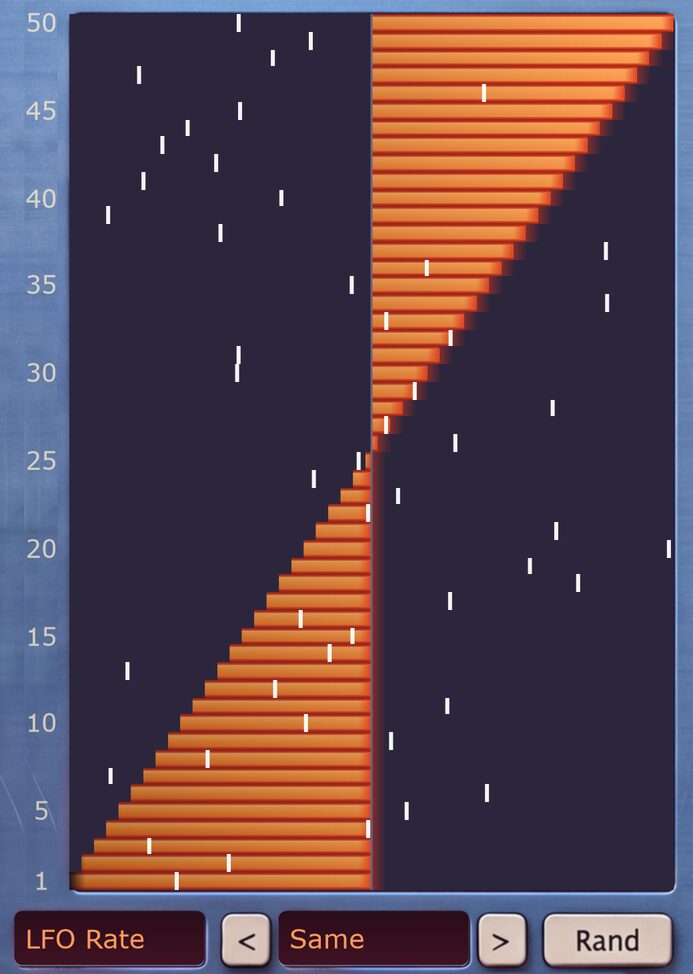
The three LFO views also steer every LFO 2 to 4 slot set to the Band Levels target (see Targets).
Shape and Rand
- Shape: applies a ready-made shape to all bands of the current view. Each view has its own list. The spectrum views offer waveforms and timbres such as Saw, Square, Organ, Formant, Drawbars and Bell; LFO Amount offers patterns such as Tilt, Ramp Up, Alternating and Wave; LFO Phase offers Rising, Falling, Alternating, Wave and Sync; LFO Rate offers Same, Rising, Speed Up, Octaves, Triplets and Drift; Spectral Mix offers Full, Off, Middle, Rising, Odd and Even. Shapes below the divider in a list are generated, so they come out different every time you pick them.
- < and >: apply the previous and the next shape in the list, wrapping around at the ends.
- Rand: blends one or two of the view's shapes with smooth random values. The messaging strip names what went into the blend.
Shape and Rand only touch the view you are in, so you can reroll the movement and keep the spectrum, or the other way around.
Layout, Copy and Morph
- Full / Zoom: the button names the current layout and switches to the other. Full shows all 50 bands at once. Zoom shows larger rows with a scroll bar, up to the highest band that the Bands dial and its modulation can open.
- A->B: copies all 50 levels from Spectrum A to Spectrum B. While you view Spectrum B it reads B->A and copies the other way.
- Morph: the slider between A and B blends from Spectrum A at the left to Spectrum B at the right. A band that is silent in one spectrum can sound in the other. Morph is also a target, so an LFO, an envelope, the pad or Z can move the blend while a note plays; that movement is added to the slider's position and stops at the two ends.
Spectrum
The box below the bank shapes the spectrum as a whole. Its top row sets the roll-off, the part a filter's cutoff would play, and its bottom row sets the Bulk, the part a filter's resonance would play. Unlike on a filter, the two are independent.
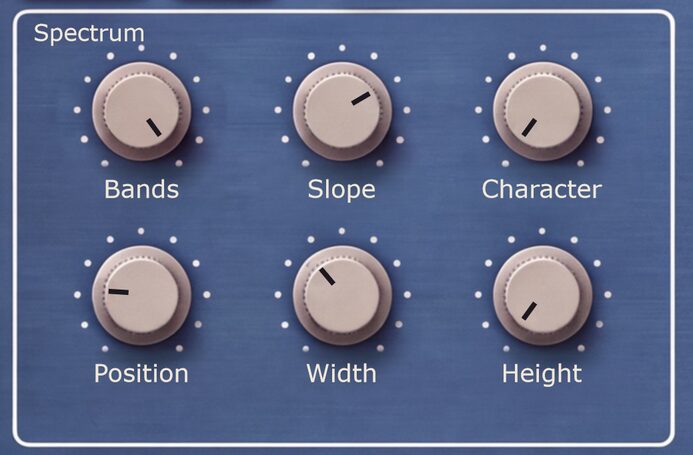
- Bands: how many harmonics sound, from 1 to 50. It moves smoothly: at 13.5, bands 1 to 13 play in full and band 14 plays at half level.
- Slope: how many bands below the Bands edge fade out, from 0 to 24. At 0 the edge is hard; higher values give a longer, gentler roll-off.
- Character: takes every band from a perfect sine at 0 to a more analog, imperfect one, by giving each band a little overtone content of its own.
- Position (Bulk): the band the boost is centered on. It can sit anywhere from the bottom of the spectrum to band 50, above the Bands edge included.
- Width (Bulk): how many bands to each side the boost spreads, from half a band to 12.
- Height (Bulk): how strong the boost is, up to +24 dB. At 0 there is no Bulk.
The Bulk is added on top of the roll-off, not cut by it: a Bulk above the edge still sounds, which is how you get a bright peak over a dark sound. The Spectral envelope (see Envelopes) can move all five of these dials during a note, and the bank's Spectral Mix view sets how much each band takes part.
Voicing
The box below the XY pad sets how the bands are tuned, spread and played.
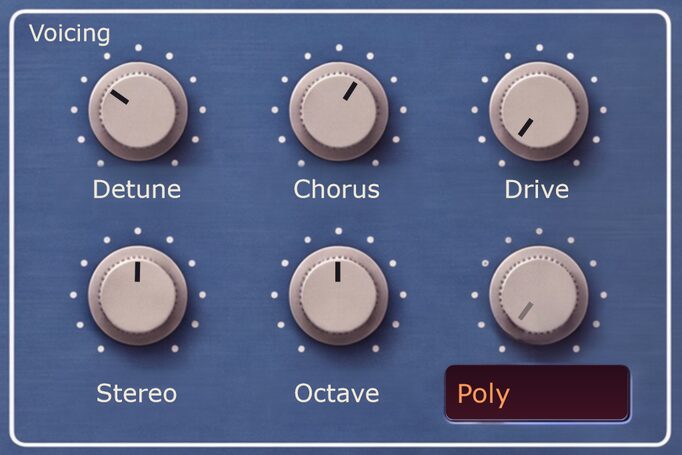
- Detune: pushes the bands off pitch by up to 25 cents, alternately up and down, for a beating sound. Band 1 stays in tune.
- Chorus: doubles every band with two copies up to 25 cents either side of its pitch, which beat against each other. Detune and Chorus add up.
- Drive: saturates each voice after its bands combine and before its amp envelope. Because every voice is driven on its own, one note never distorts another and chords stay clear. The Drive tab in the FX panel is a separate stage that drives all voices together.
- Stereo: spreads the harmonics across left and right. Band 1 stays in the center and the bands above it go alternately to the two sides, higher bands wider.
- Octave: transposes the whole sound by up to four octaves up or down, held notes included.
- Glide: in Mono, how long the pitch takes to slide between overlapping keys, up to one second. At Off every note starts fresh. Glide does nothing in Poly, so the dial is dimmed there.
- Poly / Mono: the menu under Glide. Poly plays chords. Mono plays one note at a time: the last key pressed sounds, and releasing it returns to the newest key still held. With Glide on, overlapping keys are played legato: the pitch slides while the envelopes and per-note LFOs carry on. Notes played apart always start anew.
LFOs
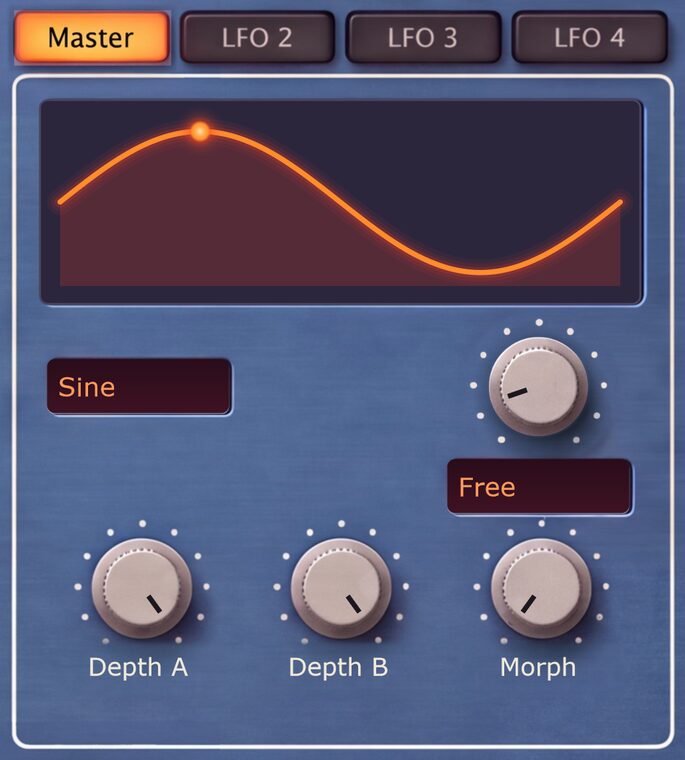
The LFO panel holds four LFOs, one per tab. Master moves the bands of the harmonic bank. LFO 2, LFO 3 and LFO 4 each move up to three targets.
Controls on every tab
- Display: shows one cycle of the LFO's shape, with a dot at the point the LFO has reached. For Random and S&H, which never repeat, it shows the next few cycles scrolling past. The Drawn, Stepped and Ramped shapes are edited here.
- Shape: the waveform. Sine gives smooth, even swells. Triangle rises and falls steadily with sharp turns. Saw jumps up, then falls slowly. Square switches between two levels. Random drifts to a new random level every cycle. S&H jumps to a new random level every cycle and holds it. Drawn plays a curve you draw in the display. Stepped plays the levels you set as a sequence of steps. Ramped connects those same levels with straight lines.
- Steps: the number of points in a Stepped or Ramped cycle, from 2 to 16. The dial appears only for those two shapes.
- Speed: how fast the LFO runs, from 0.05 to 10 Hz, or how often Random and S&H pick a new level.
- Free / Sync: the menu under Speed. On Sync the Speed dial gives way to a menu of note values from 4 bars to 1/32, with dotted and triplet values, and the LFO runs at that rate in the host's tempo.
To edit a Drawn shape, drag across the display to draw one cycle. For Stepped and Ramped, drag to set the level of each point. What you draw belongs to that LFO and is saved with the sound.
Master
The Master LFO moves the bands in the bank, each one by its own LFO Amount, LFO Phase and LFO Rate (see The Harmonic Bank). With Random and S&H every band follows its own random path.
- Depth A: how far the LFO moves the bands of Spectrum A. Left of center inverts the movement.
- Depth B: the same for Spectrum B. With opposite settings one spectrum swells while the other dips.
- Morph: how far the LFO swings the blend between Spectrum A and B, around the position of the Morph slider.
LFO 2 to 4
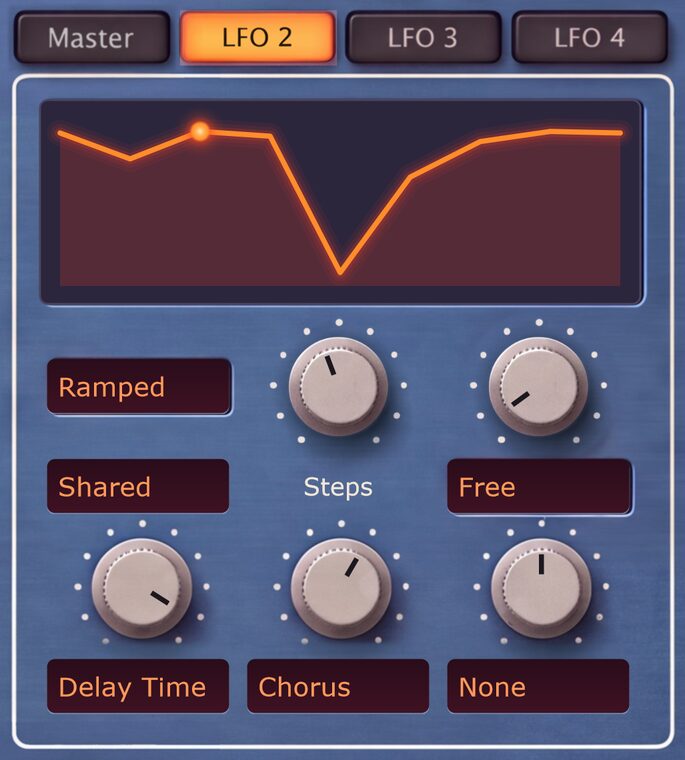
- Shared / Per note: Shared is one LFO for all notes, running on whether you play or not. Per note restarts the LFO with every note, so each note gets the same movement from its start.
- Slots: three target menus, each with a depth dial. The menu picks what the LFO moves (see Targets) and the dial how far; left of center moves the target the other way.
The effects and the Master LFO exist once for the whole synth, so slots aimed at them always follow the shared LFO, even on Per note.
Envelopes
The envelope panel holds four envelopes, one per tab. Amp shapes the volume of each note and Spectral its spectrum. Env 3 and Env 4 each move up to three targets.
The curve
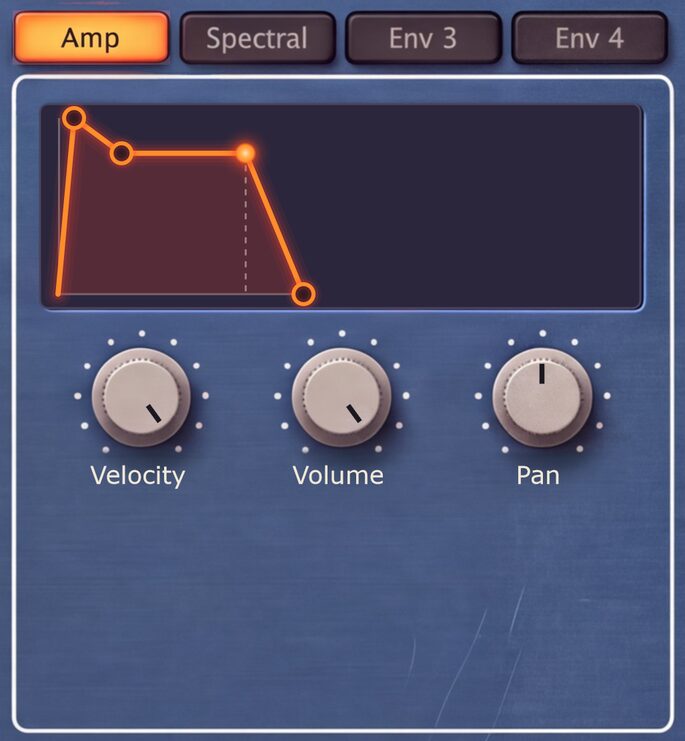
Every tab shows its envelope as one curve with three points to drag. The peak sets Attack, the time to rise after a note starts. The point behind it sets Decay, the time to fall from the peak, and Sustain, the level held while the key is down. The end point sets Release, the time to fall to zero after the key is released. The times run from a millisecond to five seconds. A dot travels along the curve with the latest note.
Amp
- Velocity: how much playing harder makes a note louder. At 0 every note is equally loud.
- Volume: the level of the voices before the effects, and so how hard they hit the FX panel's Drive and Comp.
- Pan: places the voices between left and right.
Spectral
The Spectral envelope moves the five dials of the Spectrum box during each note. It never turns the dials themselves: it adds to them, so each dial is where the sound rests and each amount is how far the envelope's peak takes it from there. All five amounts work in both directions and are off in the center.
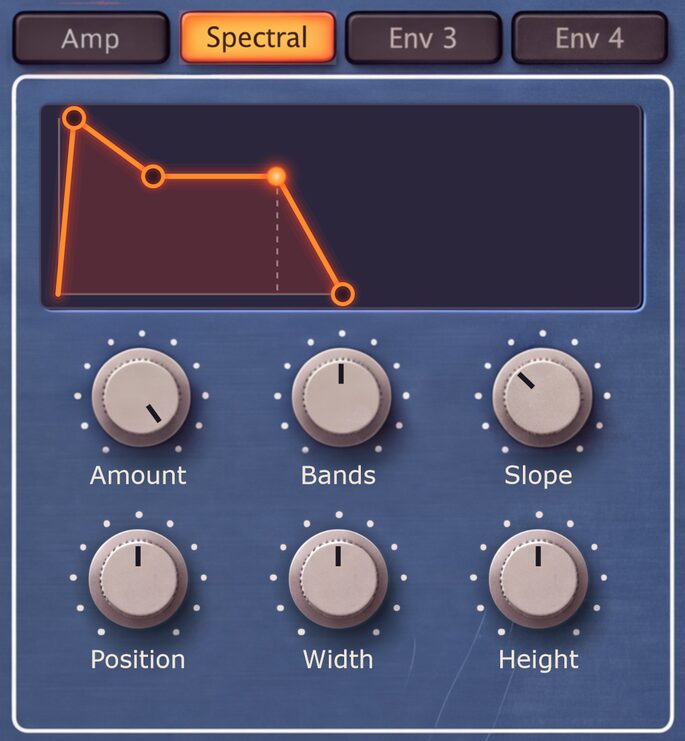
- Amount: scales all five amounts together. At 0 the envelope does nothing.
- Bands: how far the envelope opens or closes the Bands edge, by up to 50 bands. A positive amount on a low Bands setting gives the classic filter sweep: bright at the attack, closing as the envelope decays.
- Slope: how far the envelope lengthens or shortens the Slope, by up to 24 bands.
- Position: how far the envelope moves the Bulk up or down the spectrum, by up to 50 bands.
- Width: how far the envelope widens or narrows the Bulk, by up to 12 bands.
- Height: how far the envelope raises or lowers the Bulk.
Env 3 and Env 4
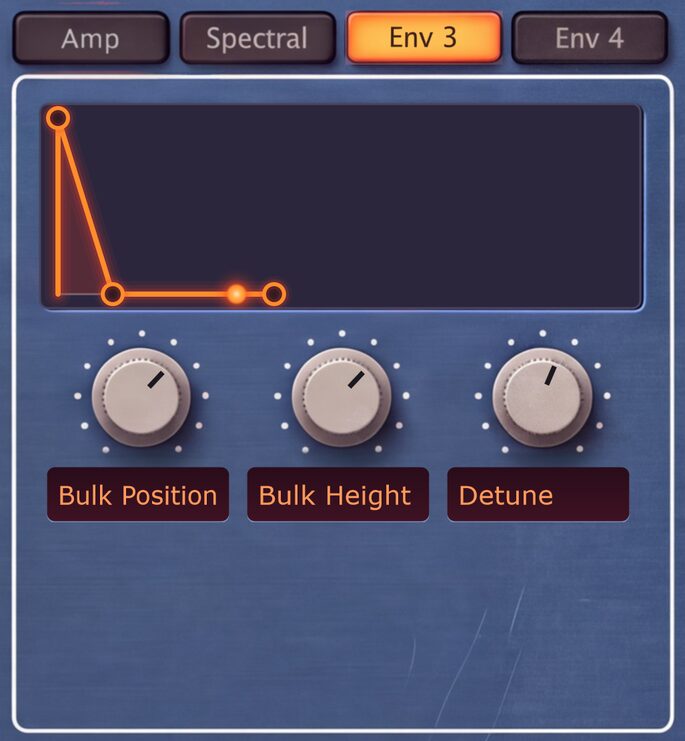
- Slots: three target menus, each with a depth dial, as on LFOs 2 to 4. The envelope rises from zero to its peak and back, so a positive depth pushes the target up as the envelope rises, and a depth left of center pushes it down.
Each note runs its own envelopes. Slots aimed at the effects or the Master LFO, which exist once for the whole synth, follow the latest note.
To let a note change from one sound into another, set Morph to A, aim an Env 3 slot at Morph and turn its depth fully up: the attack moves from A to B, the decay settles on a blend, and the release returns to A.
The XY Pad and Z
The performance controls, to the right of the bank. Three axes, each with its own targets, turn the sound into something you play by hand.
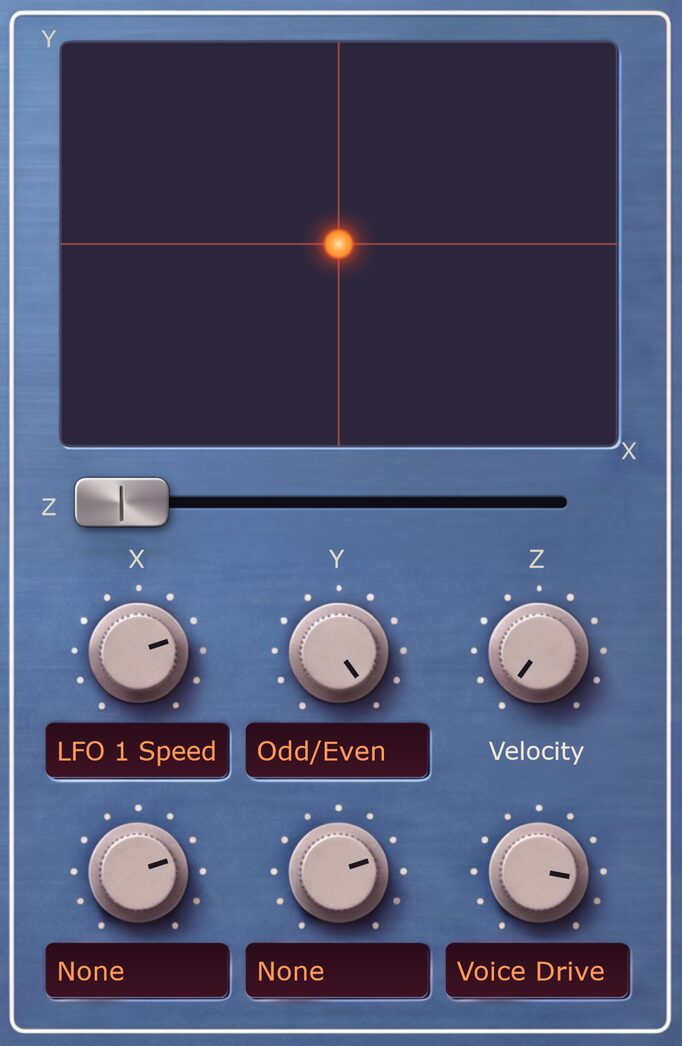
- XY pad: X runs left to right and Y bottom to top, both neutral at the center, where they change nothing. Drag the puck to move both at once; it stays where you leave it. Click somewhere else on the pad and the sound glides to that spot. Double-click to recenter. The puck always shows where the sound is, so during a glide you see it travel.
- X and Y slots: each axis has two slots, a target menu with a depth dial. The menu picks what the axis moves (see Targets) and the dial how far, starting from the target's own setting. A negative depth reverses the direction.
- Z: the slider below the pad. Unlike X and Y it rests at 0 on the left and pushes its target one way only, like a mod wheel. The mod wheel plays Z unless you assign it elsewhere on the Settings page.
- Velocity: how far each note's velocity lifts Z above the slider. At 0 Z is the slider alone. With the slider at 0 and Velocity fully up, Z is simply the velocity of each note, so its target responds to how hard you play.
- Z slot: one target menu with a depth dial, like those of X and Y.
When a target's dial rests at one end of its range, there is room to move it in one direction only. The pad then mirrors that direction to both sides of the center, so no half of the pad is dead.
A few targets belong to the whole synth, not to a single note: the effects and the Master LFO. When Z drives one of those through velocity, it follows the latest note.
Targets
LFOs 2 to 4, Env 3 and Env 4, and the X, Y and Z axes all pick from the same list of targets. Whatever the source adds is added to the target's own setting and stops at the ends of its range; a slot at full depth can sweep the whole range. Several slots on one target add up. The messaging strip describes each target as you move through the menu.
- None: the slot moves nothing.
- Band Levels: moves the bands the way the Master LFO does, using their LFO Amount, LFO Phase and LFO Rate from the bank, but with this source's own shape and speed.
- Morph: moves the blend between Spectrum A and B. A positive depth moves toward B.
- Bands: moves the Bands edge, changing how many harmonics sound.
- Slope: changes how gradually the bands fade below the edge.
- Character: moves each band between a pure sine and the strongest Character setting.
- Bulk Position: moves the Bulk toward lower or higher harmonics.
- Bulk Width: narrows or widens the range of harmonics the Bulk boosts.
- Bulk Height: lowers or raises the strength of the Bulk.
- Detune: changes how far the harmonics drift off pitch.
- Chorus: changes the amount of doubled, beating harmonics.
- Voice Drive: changes the saturation of each voice, the Drive dial in the Voicing box.
- Stereo: narrows or widens the harmonics across left and right.
- Master LFO Speed: speeds up or slows down the Master LFO and with it the movement of the bands, by up to two octaves.
- Master LFO Depth: pushes the Master LFO's Depth A, Depth B and Morph further from zero.
- LFO 2 Depth, LFO 3 Depth, LFO 4 Depth: push that LFO's three slot depths further from zero, and a negative depth pulls them in. A slot resting at 0 can be brought in this way, so Z or an envelope can fade an LFO in from nothing.
- Volume: moves the note's loudness between full level and silence. It only ever turns down.
- Pan: moves the note between left and right.
- Spectral Env: scales how far the Spectral envelope moves its five dials, like its Amount dial.
- Odd/Even: fades the even bands at a positive depth, for a hollow, square-like tone, and the odd bands above band 1 at a negative depth.
- Tilt: brightens or darkens the higher bands while the fundamental stays as it is.
- Cutoff: moves Bands and Bulk Position together, keeping their distance, like the cutoff of a resonant filter.
- Resonance: raises and narrows the Bulk at a positive depth, and lowers and widens it at a negative one.
- Pitch: raises or lowers the note by up to one octave. Small depths give fine steps, so a vibrato is easy to set.
- Delay Level, Delay Time, Delay Feedback, Delay Tone: move the dials of the Delay tab. Delay Time works in the Free mode only, and the echoes bend in pitch while it moves.
- Reverb Level, Reverb Decay: move the dials of the Reverb tab.
- Drive Amount, Drive Crush, Drive Tone: move the dials of the Drive tab.
Odd/Even, Tilt, Cutoff, Resonance and Pitch have no dial of their own; they exist only as targets. A target in the FX panel only does something while its effect is on.
FX
The FX panel on the right holds five effects, one per tab. The sound passes through them in a fixed order: Drive first, then Delay and Reverb side by side, then Comp, then EQ.
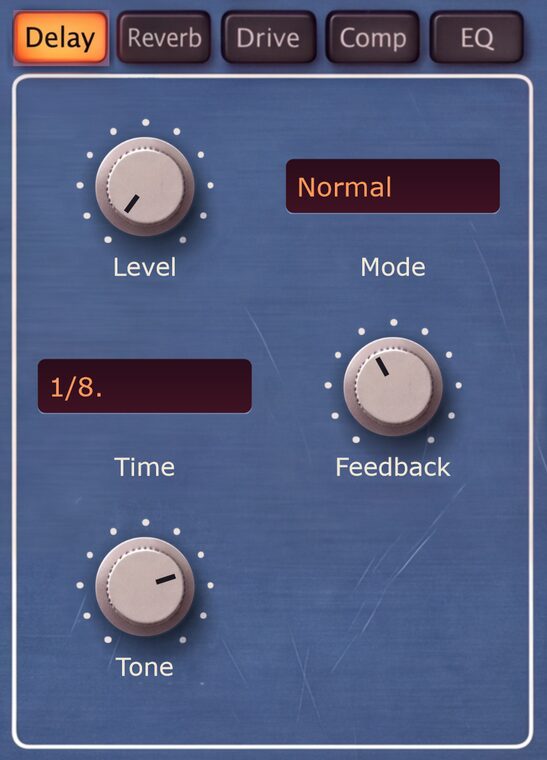
No effect has an on/off switch. An effect is off while its first dial rests at 0, which is where it starts: Level for Delay and Reverb, Amount for Drive and Comp. The EQ is off while it is flat. Raise that dial and the effect is in.
Delay
- Level: how loud the echoes are in the mix. At 0 the delay is off.
- Mode: Normal is a clean echo in time with the tempo. Free unlocks the time from the tempo. Ping Pong bounces the repeats between left and right. Tape wobbles and saturates the loop, so the repeats smear and thicken as they fade.
- Time: the echo spacing as a note value from 1/16 to 1/1, with dotted and triplet values. In Free mode it becomes a dial in milliseconds, from 5 ms to two seconds.
- Feedback: how much of each echo feeds the next. Low values give a single slap, high values a long trail.
- Tone: the brightness of the echoes. Each repeat passes the filter again, so a trail gets darker as it goes.
Reverb
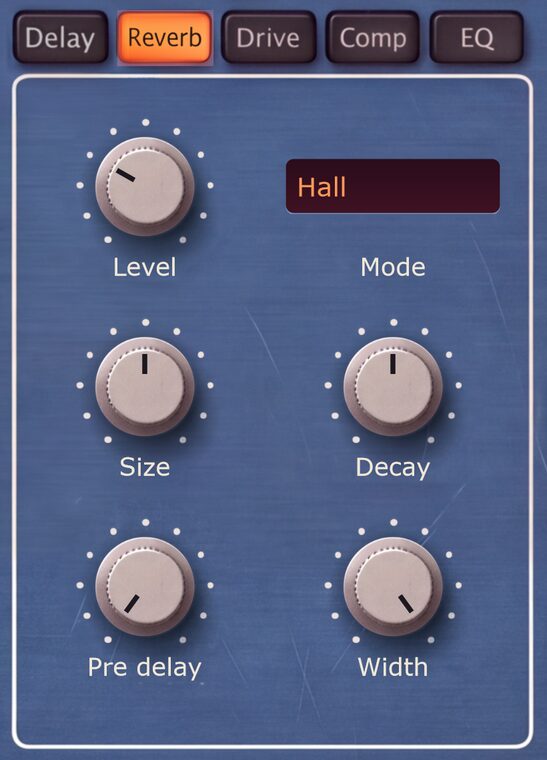
- Level: how loud the reverb is in the mix. At 0 the reverb is off.
- Mode: the kind of space. Hall is the plain, open room. Room is smaller and darker. Plate is dense and bright. Bright keeps the low end dry and puts the tail above the sound. Shimmer feeds an octave-up copy of the tail back in, so it climbs while it fades. Ducked pulls the reverb back while notes play and lets it bloom in the gaps. Gated lets the tail bloom with the note and then cuts it off.
- Size: the size of the room, from small and tight to long and washy.
- Decay: how long the tail rings. In Shimmer it also sets how bright the climbing tail is.
- Pre delay: waits before the reverb starts, so the attack of a note stays clear.
- Width: the stereo spread of the tail; fully down is mono. Three modes put their own dial in this place.
- Amount (Shimmer): how much octave-up tail feeds back into the reverb.
- Ducking (Ducked): how far the reverb drops while notes play.
- Hold (Gated): how long the gate stays open after a note before the tail is cut.
Drive
This Drive works on all voices together, after they are mixed, so chords distort as a whole. For saturation that keeps the notes apart, use Drive in the Voicing box.
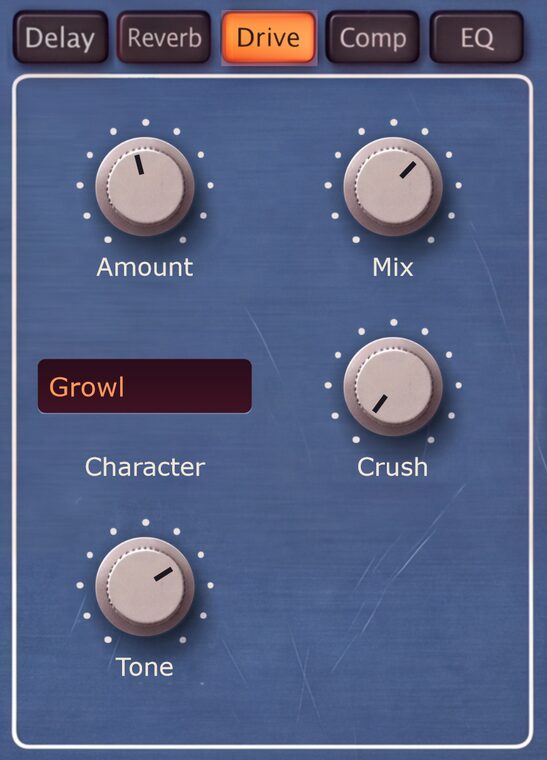
- Amount: how hard the sound is driven. At 0 the drive is off.
- Mix: blends the driven sound with the clean one. Fully up is the driven sound alone; a little below that, the clean signal keeps the attack of each note intact.
- Character: the kind of distortion. Soft rounds the peaks and thickens the body. Growl keeps the low end full while it distorts the top. Fold turns the peaks back on themselves for a bright, metallic tone. Fuzz collapses toward a square wave and sags behind every note. Roar adds a snarling octave above the sound. Scream is an amp and cabinet.
- Crush: reduces bit depth and sample rate after the drive, for digital grit. It has no effect on Scream.
- Tone: darkens the sound after the drive. Fully up is open.
Comp
A glue compressor over the whole sound, effects included.
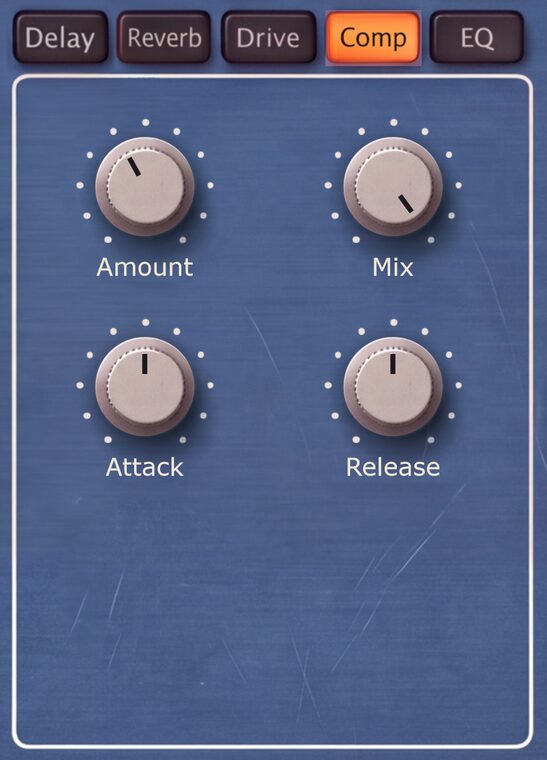
- Amount: how much the sound is compressed, with the level made up automatically. At 0 the compressor is off.
- Mix: blends the compressed sound under the clean one, for parallel compression. Fully up is the compressed sound alone.
- Attack: how fast the compressor clamps down, from 0.5 to 100 ms. Short settings tame the attack of a note, long ones let it through.
- Release: how fast it lets go, from 20 ms to one second. Long settings keep it pumping.
EQ
The last stage, so it shapes the finished sound, reverb and delay tails included.
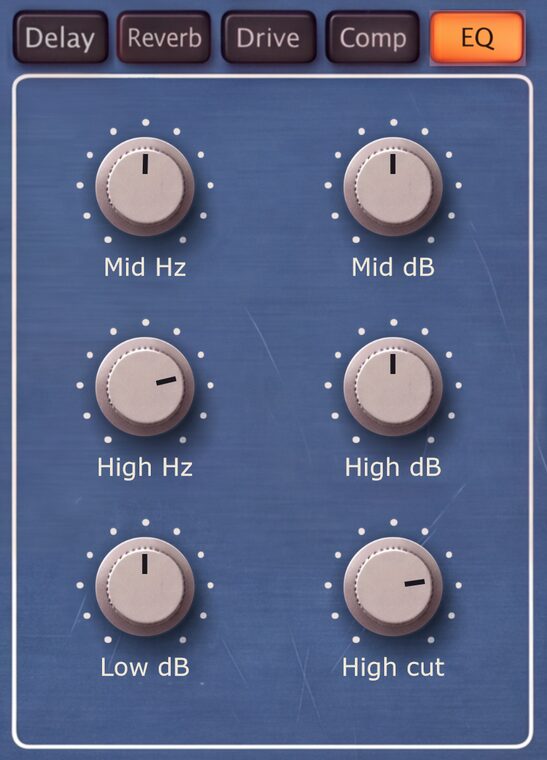
- Mid Hz: the center frequency of the mid band, from 200 Hz to 8 kHz.
- Mid dB: boosts or cuts around Mid Hz by up to 15 dB.
- High Hz: where the high shelf starts, from 1 to 18 kHz.
- High dB: boosts or cuts everything above High Hz by up to 15 dB.
- Low dB: boosts or cuts the lows below 120 Hz by up to 15 dB.
- High cut: steeply removes everything above its frequency. Fully up it reads Off.
Output
The box below the FX panel.
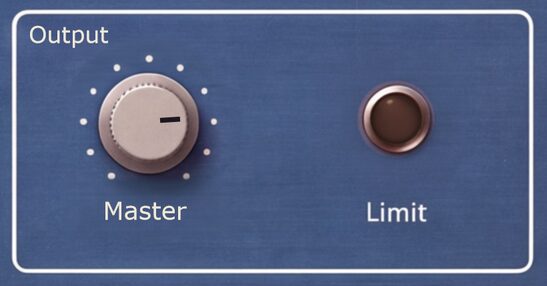
- Master: the final level, after the EQ, from -24 to +6 dB. It is saved with the preset, so it is the place to level one sound against the others.
- Limit: a safety limiter sits at the very end of the output. It is always on and has no controls. The light glows while the limiter turns down peaks; if it stays lit, lower Master.
Settings
The gear in the preset bar switches to the Settings page and back. Nothing here belongs to a sound: presets never change these settings, and Random leaves them alone. The theme is remembered for every Additive you open, and the other settings are saved with your project.
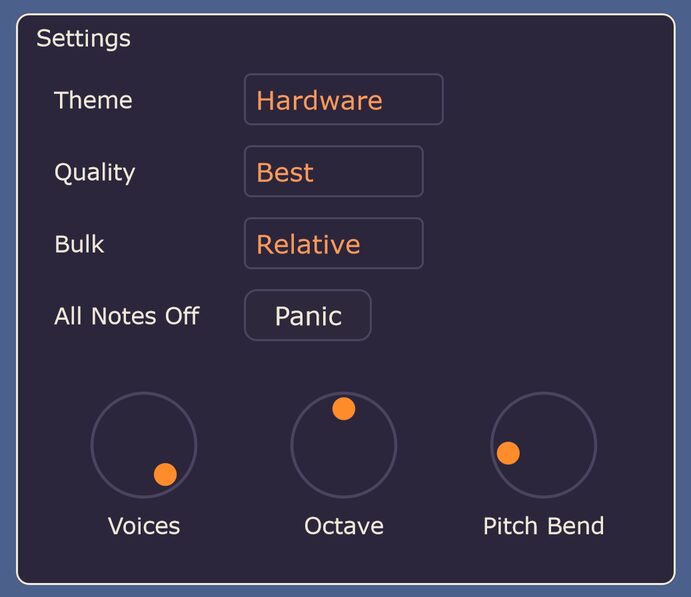
Settings
- Theme: the look of the editor: Hardware, Cobalt, Dark or Light.
- Mod Wheel: what the mod wheel moves: X, Y, Z or nothing. Z is the default, since both rest at zero.
- Panic (All Notes Off): stops every note and the delay and reverb tails at once.
- Voices: the most notes that can sound at once, releasing notes included: 1, 2, 4, 8, 12 or 16. Lower it when a heavy sound asks too much of the processor; older notes then end sooner.
- Octave: shifts everything you play by up to two octaves up or down. It adds to the Octave dial in the Voicing box, which belongs to the sound.
- Pitch Bend: how many semitones the pitch wheel bends up and down: 1, 2, 3, 4, 5, 7, 12 or 24.
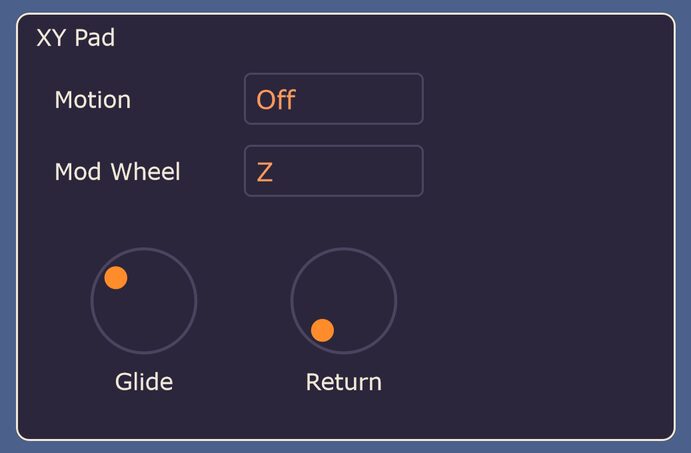
XY Pad
- Motion: lets a flick keep the puck moving after you let go. Orbit circles the center of the pad at the distance and speed of the flick. Bounce travels in a straight line and rebounds off the edges. The puck keeps moving until you touch the pad again. On Off the puck stays where you release it.
- Glide: how long the sound takes to reach a spot you click on the pad, or the center after a double-click, up to two seconds. At Off it jumps.
- Return: lets X and Y glide back to the center over this time when you release the pad. At Off the puck stays where you leave it.
License
On desktop only; the iPad version is licensed through the App Store.
- Key: paste the license key from your purchase email, then press Activate. Spaces, dashes and line breaks in the pasted key do no harm. The same key works on all your computers.
- Status: reads Demo until a key is accepted, then Licensed. Once licensed, the Key and Buy rows disappear and only Status remains.
- Buy: opens the Additive page, where you can buy a license.
Without a license Additive runs in demo mode. It plays normally for 15 minutes a day. After that, the sound fades into a 5 second burst of noise after every 60 seconds, and the messaging strip says so while it sounds. Activating a key ends this at once; nothing else is restricted.
Info
- Manual: opens this manual in your browser.
- Version: the version of the build you are running. Quote it when you ask for support.