Disto Disco: User Manual
Overview
Disto Disco turns distortion into movement. It ranges from gentle drive and classic distortion to delays, vocoders, spectral effects and granular clouds. Every dial can move in time with the host, while Random and Spice reshape the whole patch. It runs as a VST3 and AU plugin on Mac, a VST3 plugin on Windows, and an AUv3 plugin or standalone app on iPad and iPhone.
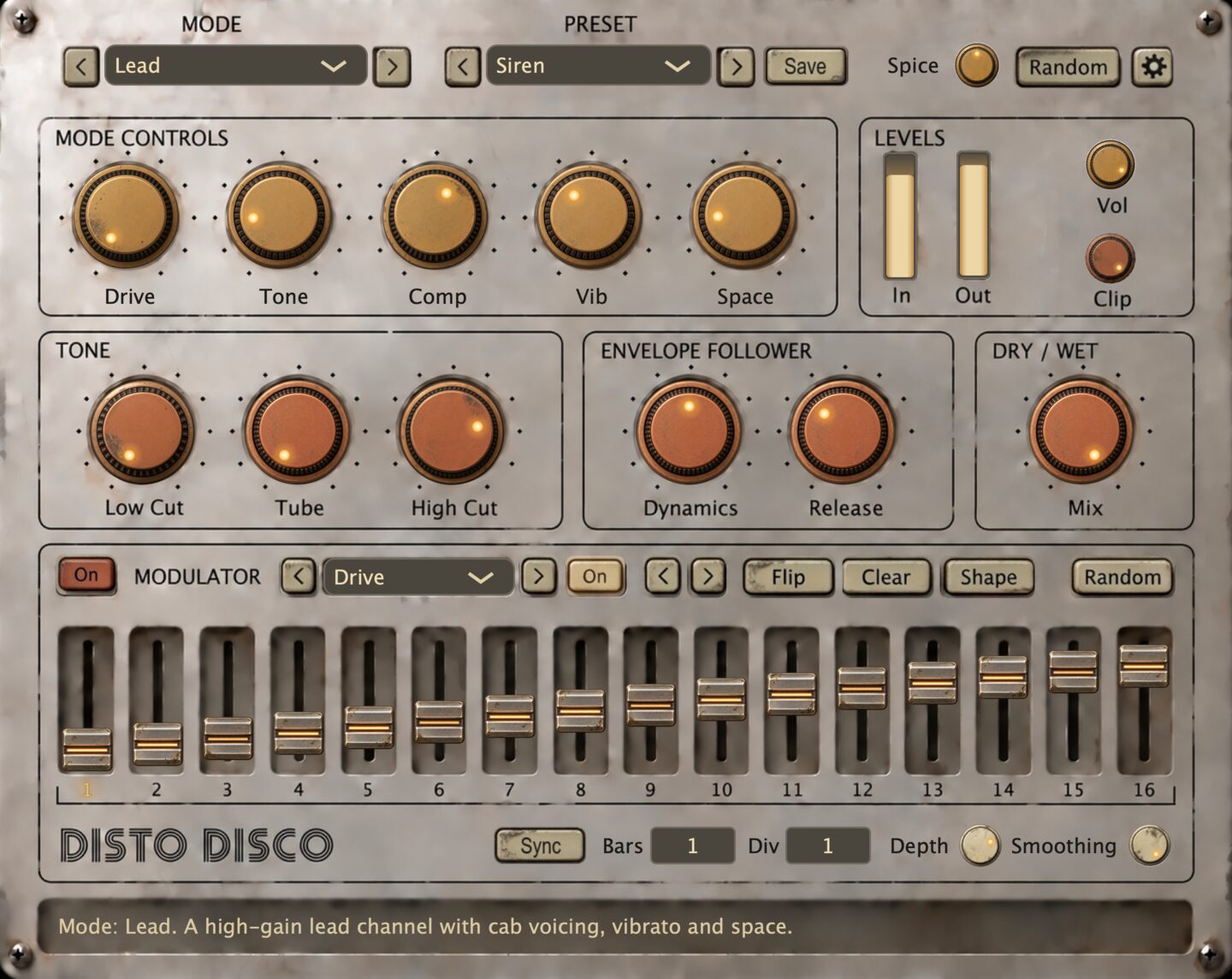
The feature set at a glance:
- A dropdown of distortion modes grouped into Drive, Time, Spectral, Math and Granular, each with its own set of dials.
- A shared tone stage after every mode: Low Cut, Tube saturation and High Cut.
- An envelope follower that adds or removes distortion with the level of the input, and a dry / wet Mix.
- A step-pattern modulator for every mode and tone dial, Mix and the envelope follower. Each has its own length, smoothing and depth, plus a shared master switch.
- Random and Spice for the whole patch, plus a separate Random for the selected modulator.
- Factory and user presets, shared between every format on a machine.
- Four themes: Steel, Cream, Dark and Light.
The Top Row
The top row controls modes, presets, randomization and settings. From left to right:
- Mode arrows: select the previous or next mode.
- Mode dropdown: choose a mode from the Drive, Time, Spectral, Math or Granular family. Loading a mode changes the dials in Mode Controls. Locked demo modes are dimmed.
- Preset arrows: load the previous or next preset.
- Preset list: choose a factory preset under System or one of your saved presets under User. A preset stores the entire patch.
- Save / Edit: save a new preset, or rename, overwrite or delete a user preset.
- Spice (0 to 100%, default 50): controls how much changes when you press Random. Higher values change more controls and add more modulation. Double-click to return it to 50.
- Random: randomizes the mode and its settings. Any modulator patterns you drew are kept.
- Gear: opens Settings. In the demo it appears as Buy and opens the activation settings.
Mode Controls
Mode Controls shows the dials for the selected mode. Drag up or down to turn a dial, or double-click to restore its default. The info bar shows its name, value and description. When a dial is modulated, its ring shows the moving value while the knob keeps your original setting.
The modes, in dropdown order, with each dial's range and default:
Drive Modes
Drive modes reshape the signal with different forms of distortion. They range from gentle warmth to fuzz, folding, bit crushing and high gain.
Soft
A soft clip that rounds the peaks and thickens the body, warm to firm.
- Amount (0 to 100%, default 50): how hard the signal is pushed into the shaper.
- Crush (0 to 100%, default 0): reduces bit depth and sample rate in proportion to Amount.
- Tone (0 to 100%, default 100): sets how much high end remains in the distorted signal. At 100% it is wide open.
- Bias (0 to 100%, default 0): skews the drive onto one half of the wave for even harmonics.
Growl
A split-band drive that keeps the low end full while adding a distorted top.
- Amount, Crush, Tone: as on Soft.
- Bite (0 to 100%, default 50): sets how hard the high band is driven.
Fold
A wavefolder that turns peaks back through zero for bright, inharmonic tone.
- Amount, Crush, Tone: as on Soft.
- Symmetry (0 to 100%, default 0): folds the positive and negative halves differently for more even harmonics.
Fuzz
Collapses toward a square, with supply sag behind every hit.
- Amount, Crush, Tone: as on Soft.
Roar
An octave-up fuzz that shifts the sound toward its octave above.
- Amount, Crush, Tone: as on Soft.
- Buzz (0 to 100%, default 100): sets how much of the octave-up fuzz replaces the original signal.
Lead
A high-gain lead channel with cab voicing, vibrato and space.
- Drive (0 to 100%, default 50): sets gain, tightness and midrange bite together.
- Tone (-100 to +100%, default 0): tilts the finished tone brighter or darker around 1 kHz.
- Comp (0 to 100%, default 40): adds sustain and compression while gating quiet passages.
- Vib (0 to 100%, default 38): sets the vibrato depth at a fixed speed.
- Space (0 to 100%, default 40): adds a tempo-synced delay and reverb.
Crush
Sample rate and bit depth reduction, a melody of artifacts as Rate moves.
- Rate (100 to 20000 Hz, default 6000): how often the signal is resampled.
- Bits (1 to 16, default 8): how many bits each sample keeps.
- Drive (0 to 100%, default 30): how hard the signal is pushed into the quantizer.
- Tone (-100 to +100%, default 0): tilts the crushed tone brighter or darker.
- Jitter (0 to 100%, default 0): randomizes the sampling clock, from a pitched crunch to noise.
Time Modes
Time modes work with recent sound, repeating it as echoes, loops or resonances. They bend, shift or scrub that history to create movement.
Delay
A delay whose echoes distort with each repeat and bend when Time moves.
- Time (20 to 1200 ms, default 375): sets the time between echoes.
- Feedback (0 to 110%, default 40): sets how much each echo feeds back, self-oscillating past 100%.
- Drive (0 to 100%, default 35): adds saturation inside the loop, making every repeat dirtier.
- Tone (-100 to +100%, default -25): tilts inside the loop, making each repeat darker or thinner.
- Space (0 to 100%, default 20): reverb around the echoes only.
Helix
A pitch-shifting delay whose echoes climb or sink with each repeat.
- Time (20 to 1200 ms, default 300): how far apart the repeats are.
- Feedback (0 to 95%, default 55): sets how much of each shifted repeat returns for another pass.
- Pitch (-24 to +24 semitones per repeat, default +12): sets the pitch change on each repeat.
- Drive (0 to 100%, default 30): saturation inside the loop.
- Space (0 to 100%, default 35): reverb around the repeats only.
Resonator
A tuned feedback loop that rings at the note you set.
- Pitch (C1 to C7, default A2): sets the note of the resonance. The info bar shows its name and frequency.
- Decay (0 to 100%, default 55): sets how long the resonance rings.
- Drive (0 to 100%, default 25): adds saturation to the resonance as it rings.
- Damp (0 to 100%, default 45): reduces high end in the resonance.
- Spread (0 to 100%, default 30): detunes the left and right resonances for stereo width.
Scrub
A delay whose playhead scrubs through recent history as the input level changes.
- Scale (0 to 200, default 50): how far the playhead jumps with the input's level.
- Bias (-100 to +100%, default 0): sets steady playback drift, from fast forward through freeze into reverse.
- Smoothing (0 to 100%, default 0): smooths the playhead motion.
Spectral Modes
Spectral modes reshape the balance of frequencies in the signal. They can filter, move, swap or silence different parts of the sound.
Lowpass
A classic lowpass filter with Drive and transient tracking.
- Cutoff (100 to 12000 Hz, default 400): where the filter starts removing highs, and where it rings.
- Reso (0 to 100%, default 70): emphasizes frequencies around Cutoff. At the maximum it whistles on its own.
- Drive (0 to 100%, default 40): saturation either side of the filter, plus noise to excite it.
- Track (0 to 100%, default 55): how far a hit throws Cutoff open.
- Decay (10 to 1000 ms, default 220): how long Cutoff takes to fall back after a hit.
Bandpass
Three resonant bands walking the spectrum, each at its own speed and place.
- Rate 1, Rate 2, Rate 3 (0 to 10 Hz, defaults 0.15, 0.40 and 0.07): set how fast the low, mid and high bands move. At 0 a band stops.
- Drive (0 to 100%, default 45): saturation before the bands.
- Stereo (0 to 100%, default 50): how far each band swings across the stereo image as it moves.
Vowel
The sound morphs from one vowel to the next, plus added distortion.
- AEIOU (0 to 100%, default 25): slides the formants along the vowel path.
- Throat (-100 to +100%, default 0): the size of the voice.
- Drive (0 to 100%, default 45): saturation before the formants.
- Peak (0 to 100%, default 45): how narrow the formants are.
- Air (0 to 100%, default 25): adds the highs of the distorted signal back for clarity.
Vocoder
Attack and release on the spectrum itself: hits soften, tails smear.
- Resolution (shown as a band count, up to 4096, default 128): sets how finely the spectrum is split. Higher values sound crisper but add latency.
- Attack (0.5 to 50 ms, default 5): how quickly it responds as the input gets louder.
- Release (5 to 500 ms, default 50): how quickly it lets go as the input quiets.
- HF Emphasis (-12 to +12 dB, default 0): tilts the highs of the output.
Distorted Vocoder
A filter bank driven into saturation by its own spectrum.
- Resolution: as on Vocoder, but capped at 1024 bands. Switching from a finer setting lowers it to the cap.
- Attack, Release: as on Vocoder.
- Drive (0 to 100%, default 50): drives the output into saturation.
- HF Emphasis: as on Vocoder.
Spectral Gate
Keeps only the strongest frequencies and silences the rest.
- Resolution: as on Vocoder.
- Threshold (0 to 100%, default 25): how loud a frequency must be to get through.
- Tilt (-100 to +100%, default 0): favors lows or highs, letting that end through more readily.
- Drive (0 to 100%, default 0): drives the gated result hard into saturation.
Phase Swap
Keeps the tone, bends the timing toward a delayed copy.
- Resolution: as on Vocoder.
- Amount (0 to 100%, default 100): how much of the borrowed timing is used.
- Tilt (-100 to +100%, default 0): applies more of the swap to one end of the spectrum.
- Delay (1 to 500 ms, default 80): how far back the timing is borrowed from, and how strongly it bites.
Math Modes
Math modes use simple mathematical operations to create raw, unusual textures.
Max
Keeps the larger value from two copies of the input signal.
- Balance (0 to 100%, default 50): sets the level of each copy before they are compared.
- Tilt (-100 to +100%, default 0): makes one copy brighter and the other darker.
- Drive (0 to 100%, default 0): adds soft clipping distortion to both copies.
- Rectify (0 to 100%, default 0): turns the negative half of the signal positive for an octave up sound.
- Delay (Off to 50 ms, default Off): delays one copy of the input signal.
Subtract
Subtracts a softly clipped copy of the input signal.
- Balance, Tilt, Drive, Rectify, Delay: as on Max.
Absolute Difference
Subtracts a clipped signal copy.
- Balance, Tilt, Drive, Delay: as on Max.
Divide
Divides each point in the signal by the one before it, creating sharp spikes.
- Balance, Tilt, Drive, Rectify: as on Max.
- Tame (0 to 100%, default 50): smooths harsh spikes and lowers their level.
Squared
Multiplies the signal by itself for a buzzy, harsh distortion.
- Tilt, Drive: as on Max.
- Body (0 to 100%, default 0): adds the original signal beneath the distortion.
- Rectify, Delay: as on Max.
Sign Multiply
A raw, buzzy distortion that turns the wave positive.
- Tilt, Drive, Tame: as on Divide.
XOR
Bitwise XOR with the previous sample, glitchy and harsh.
- Balance, Tilt, Drive, Rectify, Tame: as on Divide.
Granular Modes
Granular modes cut recent sound into short pieces, then scatter, repeat or layer them. They create textures from sparse grains to a continuous layer.
Rain
Scatters short grains, from sparse drops to a full shower.
- Rate (0 to 100%, default 50): sets how often grains are triggered.
- Decay (100 to 2000 ms, default 200): sets how long each grain rings.
- Bias (-100 to +100%, default 0): sets the balance of clean and fuzzy grains. -100% is all clean; +100% is all fuzzy.
- Spread (0 to 100%, default 0): sets how far back in time grains are taken from.
- Filter (0 to 100%, default 0): sets how strongly each grain is filtered by a resonant bandpass.
Hail
Rhythmic patterns of live chunks and instant repeats.
- Pulse: chooses the pattern of live chunks and repeats, Random at full right.
- Time (1 to 100 ms, default 30): sets the length of each chunk.
- Crossfade (0 to 100%, default 100): softens each switch with a fade; 100% is the longest fade a chunk allows.
- Freeze (0 to 100%, default 0): replaces chunks with randomly recalled ones.
- Stereo (0 to 100%, default 0): randomly pans chunks left and right, with more width at higher settings.
Cloud
A continuous weave of overlapping grains with random pitch.
- Size (20 to 500 ms, default 100): how long each grain lasts.
- Density (0 to 100%, default 50): how many grains overlap.
- Bias (-100 to +100%, default 0): sets the balance of clean and fuzzy grains.
- Pitch (0 to 12 semitones, default 0): sets the range of random pitch changes for each grain; 0 is in tune.
- Spread (0 to 100%, default 20): sets how far back in time grains are taken from.
Levels
The Levels box controls the final output volume and how strongly output peaks are clipped.
- In / Out meters: the level going into the plugin and the level leaving it.
- Vol (-60 to +6 dB, default 0): sets the final output level, after the soft clipper.
- Clip (-12 to 0 dBFS, default -0.3): sets when the soft clipper catches output peaks. At the default it acts as a safety net; lower settings make clipping part of the sound.
Tone
The Tone box shapes the distorted signal before it is mixed with the dry signal.
- Low Cut (20 to 2000 Hz, default 20): removes lows from the distorted signal.
- Tube (0 to 100%, default 0): adds tube saturation and evens out the level of the distorted signal.
- High Cut (200 to 20000 Hz, default 8000): removes highs from the distorted signal. New instances on iPad and iPhone default to 4500 Hz.
Envelope Follower
The Envelope Follower box makes the amount of distortion follow the input level. It can make louder or quieter parts of the sound more distorted.
- Dynamics (-100 to +100%, default Off): sets whether loud or quiet input gets more distortion. At the center it is Off.
- Release (20 to 2000 ms, default 80): sets how fast the effect returns after a peak. Its attack is fixed and fast.
Dry / Wet
The Dry / Wet box blends the clean input with the distorted signal.
- Mix (0 to 100%, default 100): sets how much distortion you hear. 0% is dry; 100% is fully wet.
Modulator
The Modulator uses 16-step patterns to move controls in time with the host. Mode and Tone dials, Mix, Dynamics and Release each have their own modulator. Top to bottom, left to right:
Header Row
- On / Off: enables or disables all modulators without changing their individual states.
- < / >: selects the previous or next modulator available in the current mode.
- Modulator selector: chooses the control to modulate. Mode dials appear first, followed by Low Cut, Tube, High Cut, Dynamics, Release and Mix. A dot marks each active modulator.
- On: switches the selected modulator on or off. Off returns the dial to manual control; the pattern is kept.
- < / >: moves all steps left or right, wrapping the first or last step to the other end.
- Flip: flips the polarity of every step.
- Clear: sets every step to the center, leaving the destination dial at its position.
- Shape: draws a standard pattern and switches the modulator on. Click again to cycle through Ramp Up, Sine, Triangle, Square, Zigzag, Pulse, Stairs and Decay.
- Random: randomizes the selected modulator's pattern, length and smoothing, then switches it on. It does not affect other modulators.
The Step Grid
Each column is one step. Click or drag above the center line to push the selected control up, or below it to pull the control down. Double-click a step to reset it. The current step lights while the host runs. For Mix, steps above the center favor the distorted signal and steps below favor the dry signal. At the default 100% Mix, the pattern can only move downward.
Bottom Row
- Length: Bars / Div: sets the pattern length by dividing Bars by Div. Bars offers 1, 2, 3, 4, 5, 6, 8, 12 and 16; Div ranges from 1 to 8. For example, 1 bar divided by 4 plays the pattern in a quarter of a bar.
- Depth (0 to 100%, default 100): how far this modulator moves its destination; 0% leaves it alone.
- Smoothing (0 to 100%, default 100): sets how smoothly the pattern moves between steps; 0% is hard steps, 100% glides. Choose the movement shape in Settings.
Settings
Click the gear in the top row to open or close Settings.
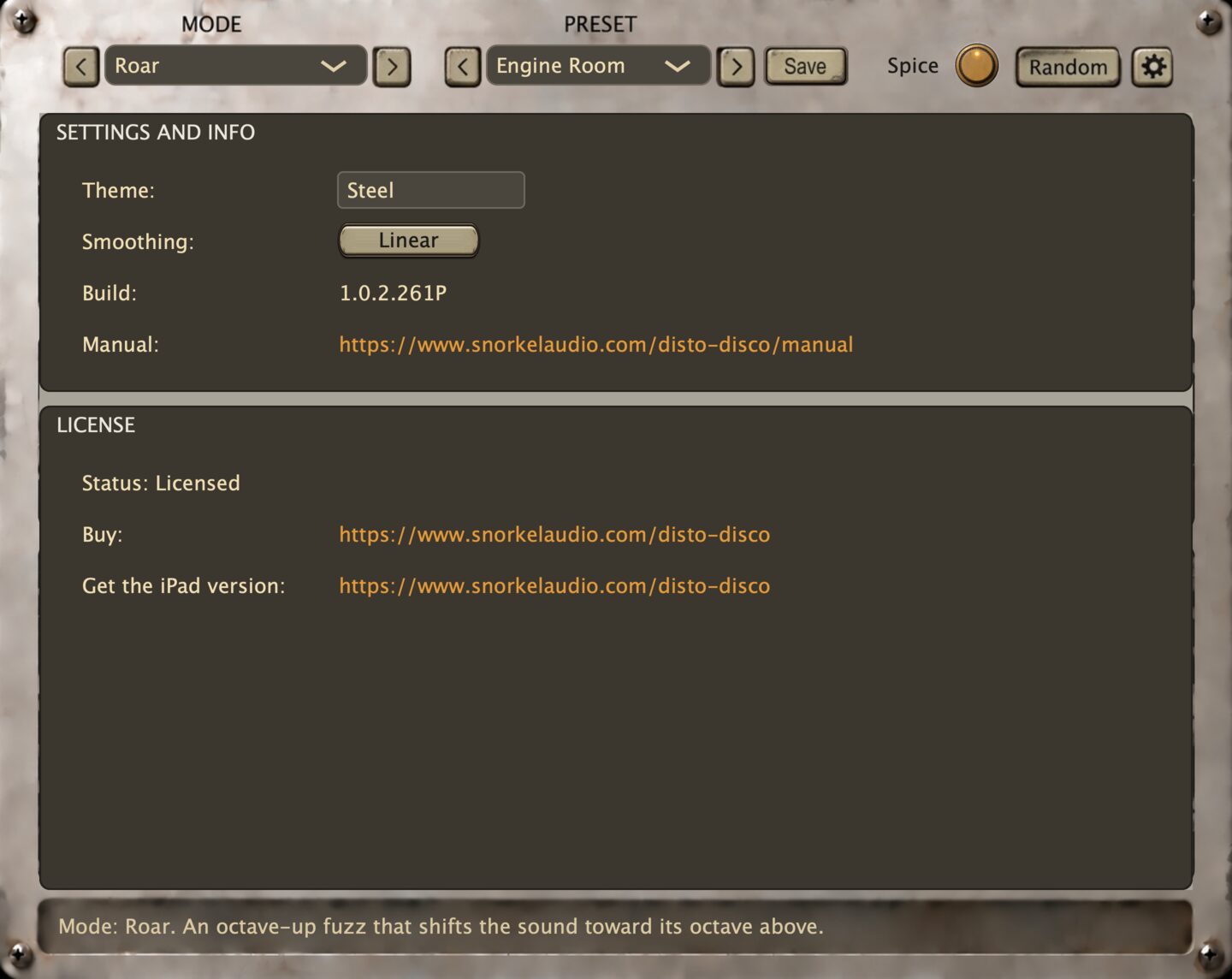
SETTINGS AND INFO, on every platform:
- Theme: a dropdown listing Steel, Cream, Dark and Light. Steel is the default. The choice is saved with the instance.
- Smoothing: cycles through Linear, Curved and Rhythmic movement for every modulator. See Smoothing Shape below.
- Tempo (iPad and iPhone standalone only): sets the modulator tempo in BPM. Plugin instances use the host tempo.
- Input (iPad and iPhone standalone only): chooses Stereo, Left or Right. Left is the default and sends input 1 of a two-input interface to both ears.
- Manual: a link to this manual on snorkelaudio.com.
- Build: the version of the build you are running.
- Get the desktop version (iPad and iPhone only): a link to the product page.
LICENSE, on desktop only (the App Store handles entitlement on iPad and iPhone):
- Key and Activate: paste your license key and press Activate.
- Status: Licensed, Unlicensed, or Key not recognized after a failed attempt.
- Buy: a link to the product page.
- Get the iPad version: a link to the App Store.
Smoothing Shape
Smoothing controls how a pattern moves between steps. This setting chooses the shape of that movement for every modulator and is saved with each preset. The difference is subtle with most sounds.
- Linear moves between steps at a steady speed. Below 100% Smoothing it moves partway, then jumps the remaining distance. At 0% it jumps immediately. This is the default.
- Curved flows through the pattern as one continuous curve. It works well for sweeps, pads and slow movement, usually with Smoothing at 100%.
- Rhythmic moves slowly at first, then quickly near the next step to emphasize the pulse. At 100% Smoothing it matches Linear; lower values sharpen the accent.
The Demo
An unactivated copy on Mac or Windows runs as a demo. It does not expire, but some features remain locked.
- Some modes and presets are locked. They appear dimmed and are skipped by the arrow buttons and Random. Each mode family still has at least one mode to try.
- Clean audio is limited to fifteen minutes per day. After that, a short noise burst plays every 60 seconds.
Activate Disto Disco in Settings to unlock everything and remove the noise. The iPad and iPhone app has no demo mode.
iOS Live Input
Disto Disco is primarily an AUv3 plugin for hosts such as AUM, Cubasis, GarageBand and Loopy Pro. The standalone app lets you play through the effect using a microphone or audio interface, but live input has a few limitations, explained below.
- Avoid feedback when using the built-in microphone. The speaker’s sound can feed back into the nearby microphone and cause a howl. Use headphones or an audio interface. For safety, Disto Disco starts with the input muted and mutes it again if you disconnect your headphones. Reconnect them and the sound returns automatically.
- Bluetooth headphones work, but are not ideal for playing live. Using their microphone reduces the input quality, and Bluetooth output adds noticeable delay. Use wired headphones or an audio interface for better sound and lower latency.
- If your instrument is only heard on one side, change the Input setting. Two-input audio interfaces usually send input 1 to the left channel and input 2 to the right. Choose Left or Right in Settings to hear that input in both ears. The default is Left.
- Some modes add noticeable delay. Vocoder, Spectral Gate, Phase Swap and Scrub process sound in chunks. They work best on recorded audio. For live playing, use the Drive, Math or Granular modes.
- Keep the standalone app open while playing. Audio stops if you switch to another app or lock your device. The screen stays awake while the input is live. This limitation does not apply when using Disto Disco inside a host.