Little Duck Manual
Overview
Little Duck is a tempo-synced ducker: a "fake sidechain" volume shaper that pumps your track to the beat without a sidechain input to route. Pick a rate, shape the curve with four dials, and it locks to your host's tempo.
There's only one page, no tabs to dig through:
- Duck View (left): a live plot of the ducking curve, with a scope showing what's actually getting through.
- Controls (right): an On/Off switch, Rate, and the Depth, Attack, Release and Shape dials that shape the curve.
- Messaging strip (bottom): shows what you just changed.
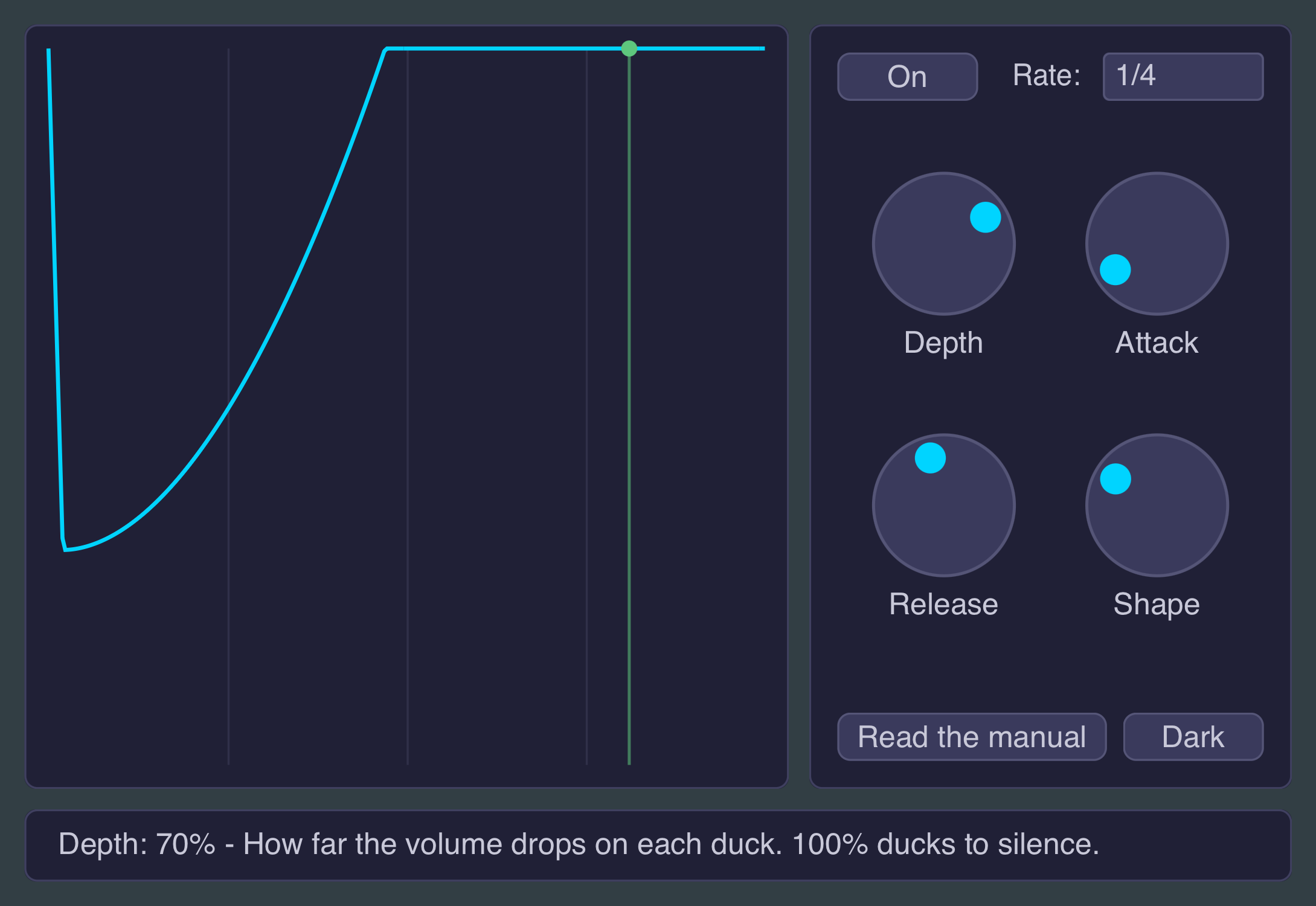
The feature set at a glance:
- Tempo-synced duck cycle: five rates from 1/1 to 1/16, always lined up with the beat.
- Depth, Attack, Release and Shape dials, covering a gentle breathe through to a hard, classic scoop.
- A live curve display with a cycle-synced scope, so you can see exactly what's playing and what's being ducked.
- Light and dark themes.
Little Duck runs as an AUv3 audio effect on iPad (in AUM, Logic Pro, GarageBand, Cubasis, or any other AUv3 host), as a VST3 or Audio Unit plugin on macOS, and as a VST3 plugin on Windows. On iPad, open it directly once after installing so iOS registers the AUv3 with the system; after that it shows up in your host, and you won't need to open it directly again.
The Duck View
The square box on the left. It doesn't take any clicks or drags: it's a read-out, not a control, but it's the fastest way to understand what the dials on the right are doing.
- Gridlines: four faint vertical lines marking the quarter points of the duck cycle. Orientation marks, nothing more.
- The scope: a row of bars synced to the cycle, showing your actual sound. Each bar is stacked in two colors: the brighter segment is what's playing through after ducking, the darker segment above it is how much got ducked away at that instant. No signal, no bars, so a silent input just shows the curve on its own.
- The curve: the accent-colored line tracing the gain over one duck cycle. The top of the box is full volume, the bottom is fully ducked. This is exactly what the Depth, Attack, Release and Shape dials are shaping.
- Playhead and gain dot: a vertical line sweeping across the box in time with playback, with a dot riding the curve at the current gain. Both disappear while the host transport is stopped, since there's nothing playing to point at. In the standalone app there's no transport at all, so they're always shown.
The Controls
The box on the right.
- On/Off: turns ducking on or off. Off passes your audio through unprocessed, so you can A/B against the dry signal while mixing.
- Rate: how often the duck cycle repeats, as a note value: 1/1 (once per bar), 1/2, 1/4 (once per beat, the default), 1/8, or 1/16.
- Depth: how far the volume drops on each duck. 100% ducks all the way to silence.
- Attack: how fast the volume drops at the start of the cycle, as a share of the cycle length. Small values snap hard; larger values ease in.
- Release: how long the volume takes to recover after the drop, again as a share of the cycle. Attack and Release are always clipped so together they can't exceed the full cycle.
- Shape: bends the recovery curve. Negative values hold the volume low and snap back up late, the classic sidechain scoop and the default. Positive values recover faster and ease in gently instead.
- Theme: the button below the dials flips between Light and Dark. This is a display preference for your machine, not something saved with your project.
Because Attack and Release are percentages of the cycle rather than fixed times, the shape of the pump stays the same however fast or slow the Rate is set: only the speed changes.